Set Up Indoor Wi-Fi Roaming with OpenWRT: A Step-by-Step Guide
What You'll Learn
- How to install OpenWRT on compatible routers.
- Steps to configure Wi-Fi roaming for seamless connectivity.
- Best practices for optimizing indoor Wi-Fi performance.
- Common pitfalls to avoid during setup.
- Tips specific to the Indian market for better performance.
Prerequisites
Before you begin setting up indoor Wi-Fi roaming with OpenWRT, ensure you have the following:
- A compatible router that supports OpenWRT.
- Basic understanding of networking concepts.
- A computer or device to access the router's web interface.
- Internet connection for downloading OpenWRT firmware.
- Tools for connecting to your router (Ethernet cable, etc.).
Step 1: Installing OpenWRT on Your Router
The first crucial step in setting up indoor Wi-Fi roaming is installing the OpenWRT firmware on your router. OpenWRT is an open-source firmware that provides advanced networking features. To start, you need to download the appropriate OpenWRT firmware for your router model from the official OpenWRT website. Ensure that you choose the correct version that matches your router's hardware specifications.
Once you have the firmware, connect your router to your computer using an Ethernet cable. Access the router’s web interface by opening a web browser and entering the router's IP address, typically something like 192.168.1.1. Log in using the default credentials, which are often 'admin' for both the username and password.
# Example command to flash OpenWRT firmware via command line
scp openwrt-xxxxx.bin root@192.168.1.1:/tmp/
ssh root@192.168.1.1
mtd write /tmp/openwrt-xxxxx.bin firmware
In the web interface, navigate to the firmware upgrade section and upload the downloaded OpenWRT firmware. After the upload is complete, the router will reboot, and you will have OpenWRT installed.
Step 2: Initial Configuration of OpenWRT
After successfully installing OpenWRT, you need to perform the initial configuration. Connect to the OpenWRT interface again using the default IP address. Once logged in, change the default password for security reasons. This is crucial as it protects your network from unauthorized access.
Next, configure the basic network settings. Set up the WAN (internet) connection by selecting the appropriate connection type (DHCP, Static IP, etc.). If you are using a broadband connection, DHCP is usually the preferred option. Ensure to save these settings before proceeding.
Additionally, configure the LAN settings to define your local network. You may want to change the default LAN IP address to avoid conflicts with other devices. For instance, you can change it to 192.168.2.1. Make sure to save and apply the changes, and reboot the router if necessary.
Step 3: Setting Up Wi-Fi Networks
With your OpenWRT router configured, the next step is to set up your Wi-Fi networks. OpenWRT allows you to create multiple SSIDs for different purposes. For indoor roaming, it’s advisable to configure at least two networks: one for general use and another for guest access.
Navigate to the Wireless section in the OpenWRT interface. Here, you can add new wireless networks by clicking on 'Add'. Specify the SSID for your main network and adjust the settings according to your requirements, such as encryption type and password. WPA2 is generally recommended for its security features.
After configuring the network, ensure to enable the 802.11r fast roaming feature. This feature is essential for seamless roaming as it facilitates quicker handoffs between access points. To enable it, check the box for 802.11r in the wireless settings and save the changes.
Step 4: Configuring Multiple Access Points
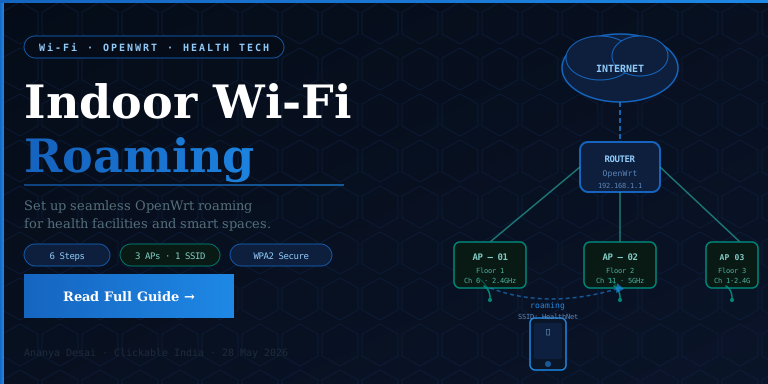
For optimal indoor roaming, you may want to deploy multiple access points (APs) throughout your space. Each AP should be connected to the same local network to allow devices to switch between them without interruption. Install OpenWRT on each AP following the same installation steps outlined previously.
Once installed, configure each AP by setting the same SSID, encryption methods, and password as your primary network. However, assign different channels to each AP to minimize interference. A common practice is to use channels 1, 6, and 11 for 2.4 GHz networks. This ensures that devices can connect to the strongest signal as they move around.
Lastly, ensure that each AP is within range of the others to maintain a strong connection. You can also set up a mesh network if your hardware supports it, allowing for more dynamic load balancing and coverage.
Common Mistakes and How to Avoid Them
- Ignoring Firmware Compatibility: Always verify that the firmware version you are downloading is compatible with your router model to prevent bricking.
- Forgetting to Secure Your Network: Always change default passwords and enable strong encryption settings to protect your network.
- Incorrectly Configuring Wi-Fi Channels: Using the same channel for multiple APs can lead to interference. Stick to non-overlapping channels.
- Neglecting Firmware Updates: Regularly check for and apply firmware updates to maintain security and performance.
- Not Testing Roaming Functionality: After setup, test the roaming feature with multiple devices to ensure they switch smoothly between APs.
India-Specific Tips
In India, setting up Wi-Fi networks has some unique considerations. Firstly, the cost of routers varies significantly. While budget routers can be found for under ₹2,000, high-performance models can exceed ₹10,000. It's essential to evaluate your specific needs before making a purchase to ensure you get the best value for your investment.
Additionally, consider the local regulations regarding wireless transmission. The Telecom Regulatory Authority of India (TRAI) provides guidelines on the permissible frequencies and power levels for Wi-Fi use. Ensure that your setup complies with these regulations to avoid potential legal issues.
Frequently Asked Questions
What is OpenWRT?
Can I use OpenWRT on any router?
How do I enable roaming features in OpenWRT?
Is it necessary to have multiple access points for roaming?
Stay Updated
Get the latest posts delivered to your inbox.
Related Posts
10 Essential Health Tips for a Balanced Diet in 2026
Explore 10 essential health tips to maintain a balanced diet in 2026, focusing on nutrition, wellness, and practical...
The Future of AI in Healthcare: Will It Replace Doctors in 2026?
Explore the transformative role of AI in healthcare and whether it can replace doctors by 2026. Understand its...